
Set up your branch
A branch is one location you operate — a store, an outlet, a kitchen. Each branch keeps its own stock levels, purchases, sales, and reports, while sharing your company's team and catalog. Most businesses start with a single branch and add more as they grow.
Your first branch
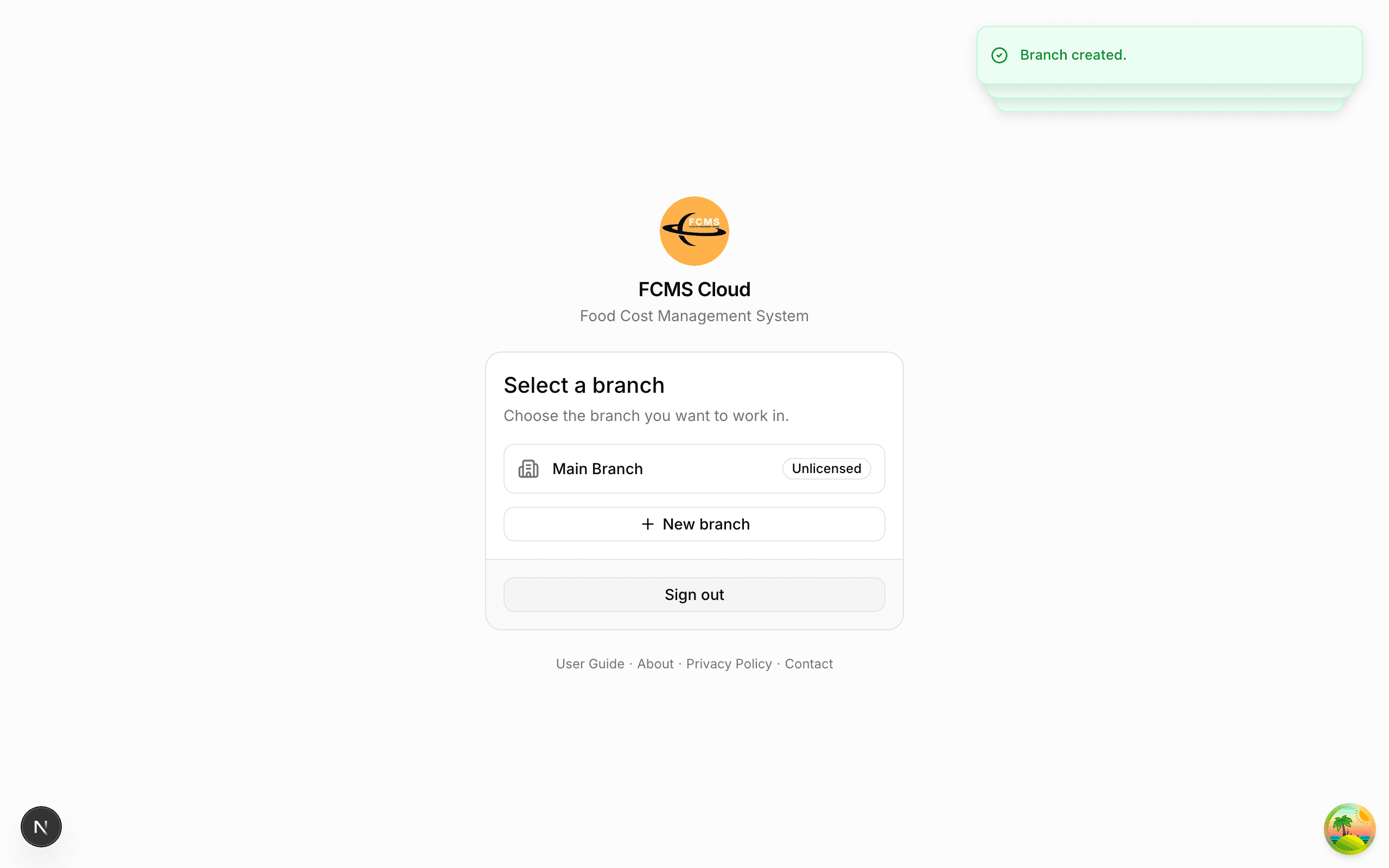
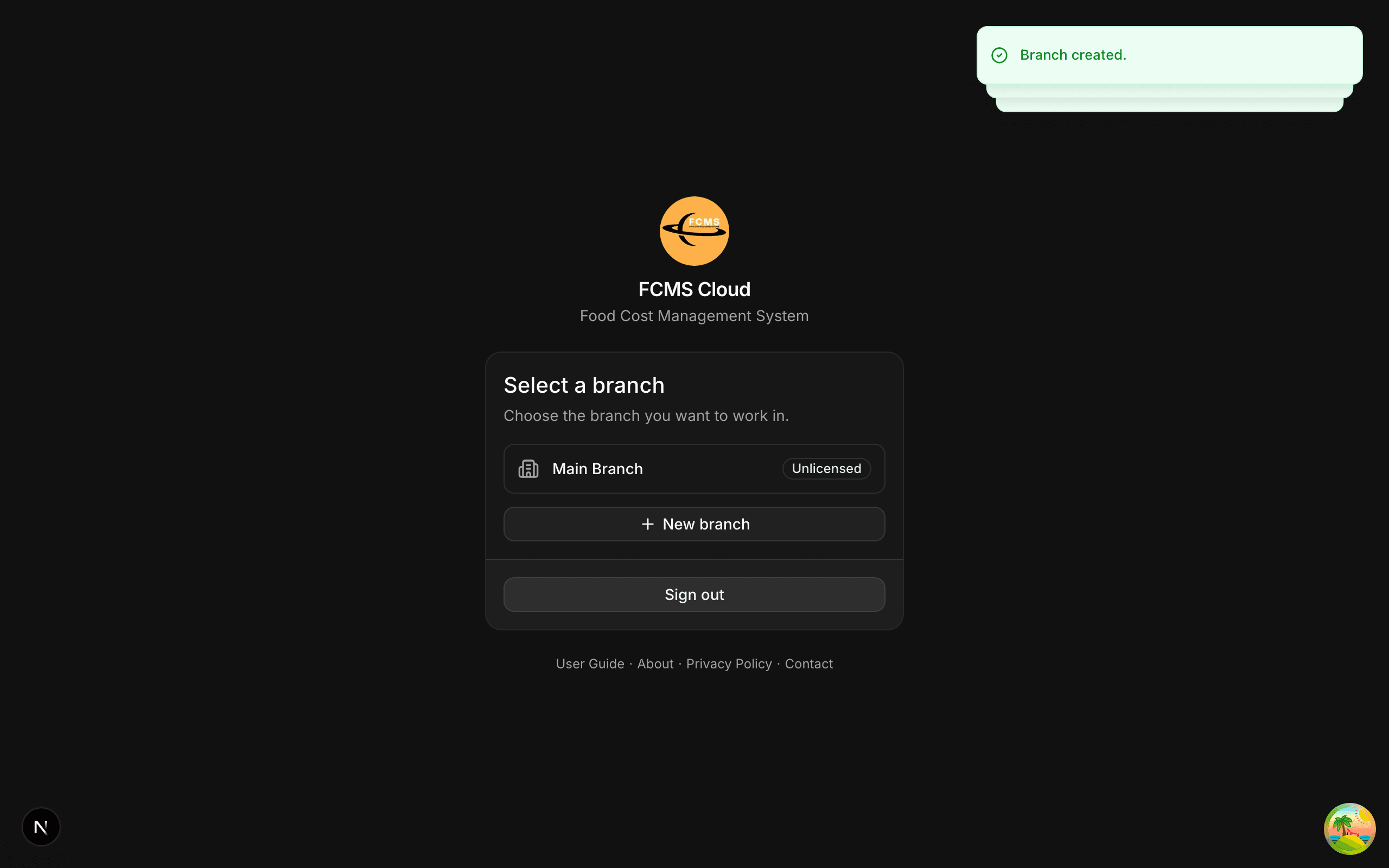
Right after you verify your account, FCMS asks you to set up a branch before you can do anything else.
Create a new branch
Give it a name (for example, "Main Store") and, optionally, an address.
…or select an existing one
If your company already has branches, pick one from the list instead of creating a new one.
Continue
FCMS opens that branch and takes you to the dashboard. From now on, what you see and change applies to the active branch.
On the web app
The web app registers your browser as a device for the company automatically, so you go straight from branch selection to the dashboard.
On mobile
On mobile, your device is tied to the branch you choose. You may also be asked to assign team members to the device so they can sign in on it — see Your team & roles.
Switching branches
If you run more than one location, you can move between them at any time without signing out. The active branch is always shown so you know which one you're working in.
On the web app
Use the branch switcher in the top bar. Pick another branch and the page reloads with that branch's data.
On mobile
Open the branch switcher from the home screen, then tap the branch you want. FCMS loads that branch and syncs its latest data.
Heads up
Always check the active branch before recording stock or sales. Entries are saved to whichever branch is currently open.
Adding more branches
You can create additional branches as your business grows. New branches start empty — you'll set up their catalog and stock just like the first one, or move stock into them using branch transfers.
Access
Creating and editing branches is an owner/administrator task. Team members work inside the branches they're given access to.
Licensing
Each branch can be licensed or unlicensed, shown by a badge in the branch list. A license unlocks full use of a branch; unlicensed branches may be limited. If you're unsure of your status, check Settings → Licensing (see Settings & account) or contact your provider.
Next: Your team & roles.