
Recipes & menus
Recipes turn your ingredients into the dishes and drinks you sell. FCMS adds up the cost of every ingredient so you know exactly what a recipe costs to make. Register a recipe's output as a finished product and you get a real, countable item you can produce, sell, or even use as an ingredient in another recipe. Menus group what you sell into lists your cashiers can ring up quickly.
Access
Recipes need the Recipes permission; selling menus need the Selling Menu permission. You'll only see the parts your role allows.
How recipes work
A recipe is a list of ingredients (items from your catalog, each with a quantity and unit) plus a numeric yield — how many units one batch makes. From these, FCMS calculates:
- Total cost — the cost of all the ingredients combined (shown net of tax).
- Cost per yield — what one unit of the output costs to make (total cost ÷ yield). This is your true food cost for the dish.
Because ingredient costs come from your purchases, a recipe's cost updates as your buying prices change. Keep purchases accurate and recipe costs follow.
Note
The yield here is just a number (e.g. 10). You choose the yield's unit later, when you register the finished product — together with selling price and markup, which belong to that sellable item, not to the recipe itself.
Creating a recipe
Open Recipes
Web: Recipes in the sidebar. Mobile: the Recipes button on the home screen.
Fill in the recipe details
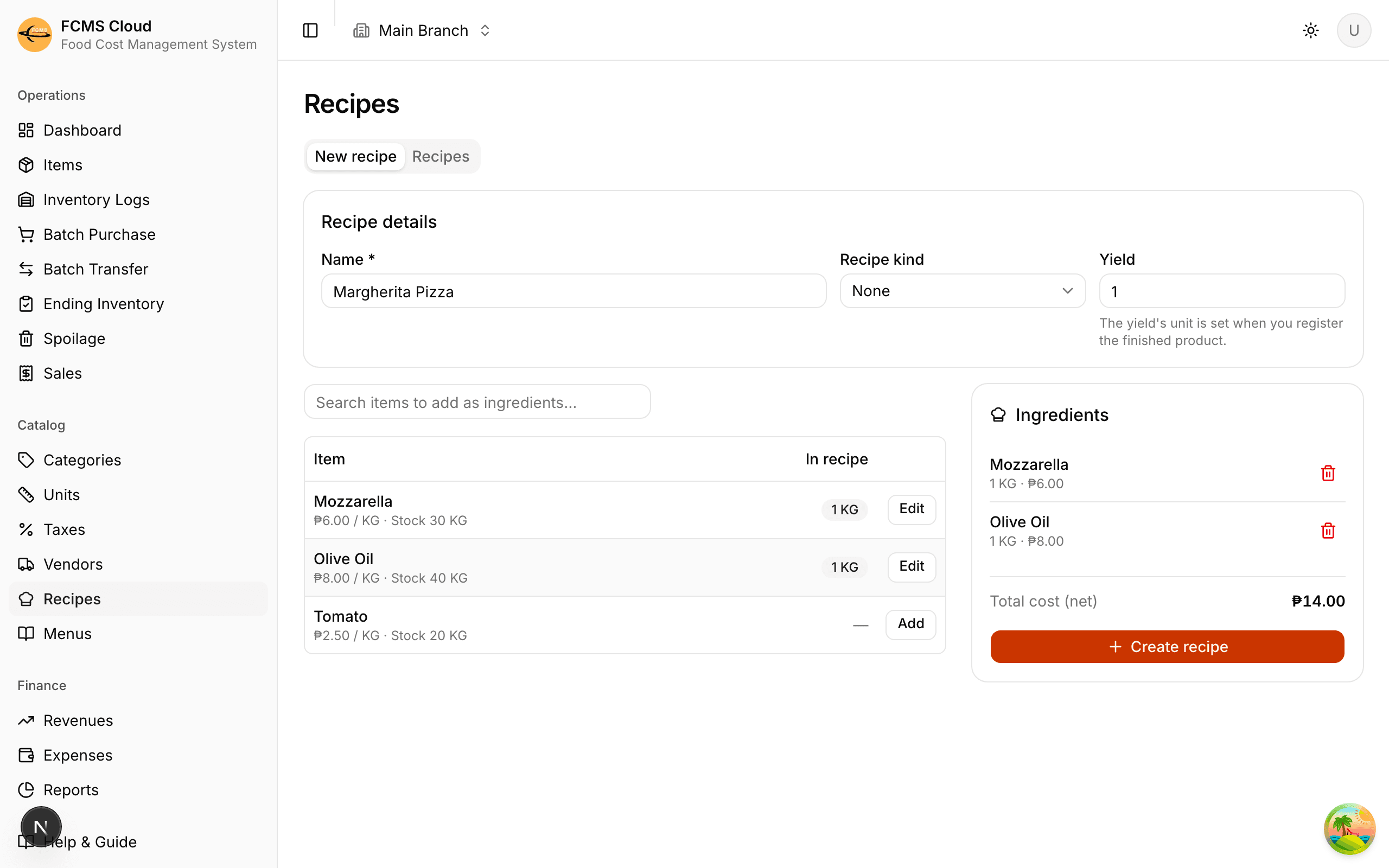
On the New recipe tab, give it a name, pick a recipe kind (a category like Mains, Drinks, or Sauces) to keep your list organised, and set the numeric yield — how many units one batch produces.
Add ingredients
Search your items and Add each one to the recipe. For every ingredient, enter the quantity and unit it uses. The running total cost updates as you go.
Create the recipe
Review the ingredient list and total cost, then Create recipe. You land on the recipe's page, where you can see its cost per yield and add more ingredients.
Tip
Some ingredients are sold by the piece but used by a measured amount — say a 1.5 L bottle you pour by the millilitre. When you add such an ingredient, tick "Measure by the item's UOM per piece" to enter what you actually use (e.g. 200 ml) instead of a fraction of a bottle. FCMS converts it to pieces for you.
Producing finished goods
A recipe is a formula; producing turns it into actual stock. First you register a finished-product item for the recipe — a sellable, stockable item that represents the recipe's output. Then you can produce batches against it.
Register the finished-product item
On the recipe's page, choose Register finished product. Confirm the name, pick a category and the Yield UOM (the unit one yield is counted in), and optionally set cost/sales taxes and a low-stock level. The item's cost is derived from the recipe.
Produce a batch
Use Produce stock, enter how much you made, and confirm. FCMS lists the required ingredients scaled to that yield, uses them up (removing them from stock), and adds the finished product to stock at the recipe's cost per yield.
Note
Before producing, FCMS checks ingredient stock and flags anything short in red. You can still produce anyway — it just drives those ingredients negative, so it's a prompt to record a purchase first if the shortage is a mistake.
Tip
Set the selling price and markup on the registered finished-product item (open it from your Items list), not on the recipe — that's where pricing lives now. See Items & categories.
Producing keeps your inventory honest end to end: the raw ingredients go down, the finished item goes up, and the cost carries across — so a sold dish traces all the way back to what it cost to make.
Recipes inside recipes
There's no separate "sub-recipe" to set up. Every finished product you register is automatically usable as an ingredient in another recipe. Make a sauce, a stock, or a dough its own recipe, register and produce its finished product, then just add that product as an ingredient wherever you need it — its cost flows through automatically. This lets you cost complex dishes accurately without re-entering the same components every time.
Building selling menus
A selling menu is a curated list of items and finished products, with the price charged for each — what appears at the sales counter.
Open Menus
Web: Menus in the sidebar. Mobile: the Selling Menu button on the home screen. Choose New menu and name it (e.g. "Lunch", "Drinks", "Happy Hour").
Add items
On the menu's page, pick an item or finished product and a quantity, then Add. Repeat for everything the menu should offer.
Pick a size where offered
If an item has selling size options (e.g. Small / Large), choose one — its price is used. Otherwise the item's base price applies.
Tip
Use different menus for different times or sections — a slimmer menu makes the counter faster, and selling-size options let you offer the same item at several price points.
Next: Sales & POS.