
Essentials — concepts to learn first
A handful of ideas make FCMS click. Learn these before you dive into the feature-by-feature chapters and everything else falls into place: how a shared master item differs from a branch's own stock, why measuring by the UOM per piece unlocks unit conversion everywhere, when to use the IDT import versus the three everyday inventory tools, and how revenue grouping turns your categories into the numbers on your reports.
Each section below is a short primer with a link to the full chapter when you want the step-by-step.
1. Master items vs branch inventory items
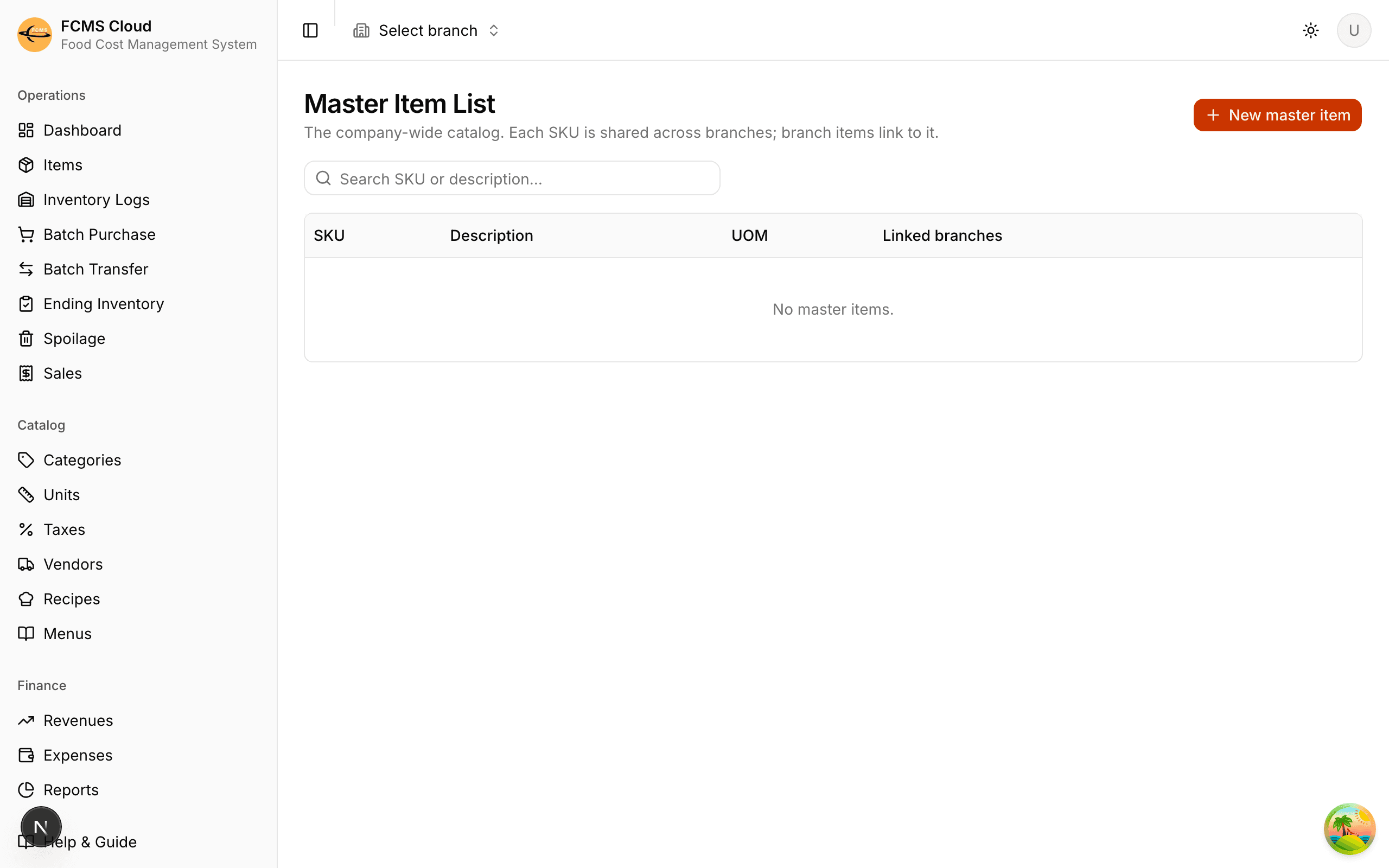
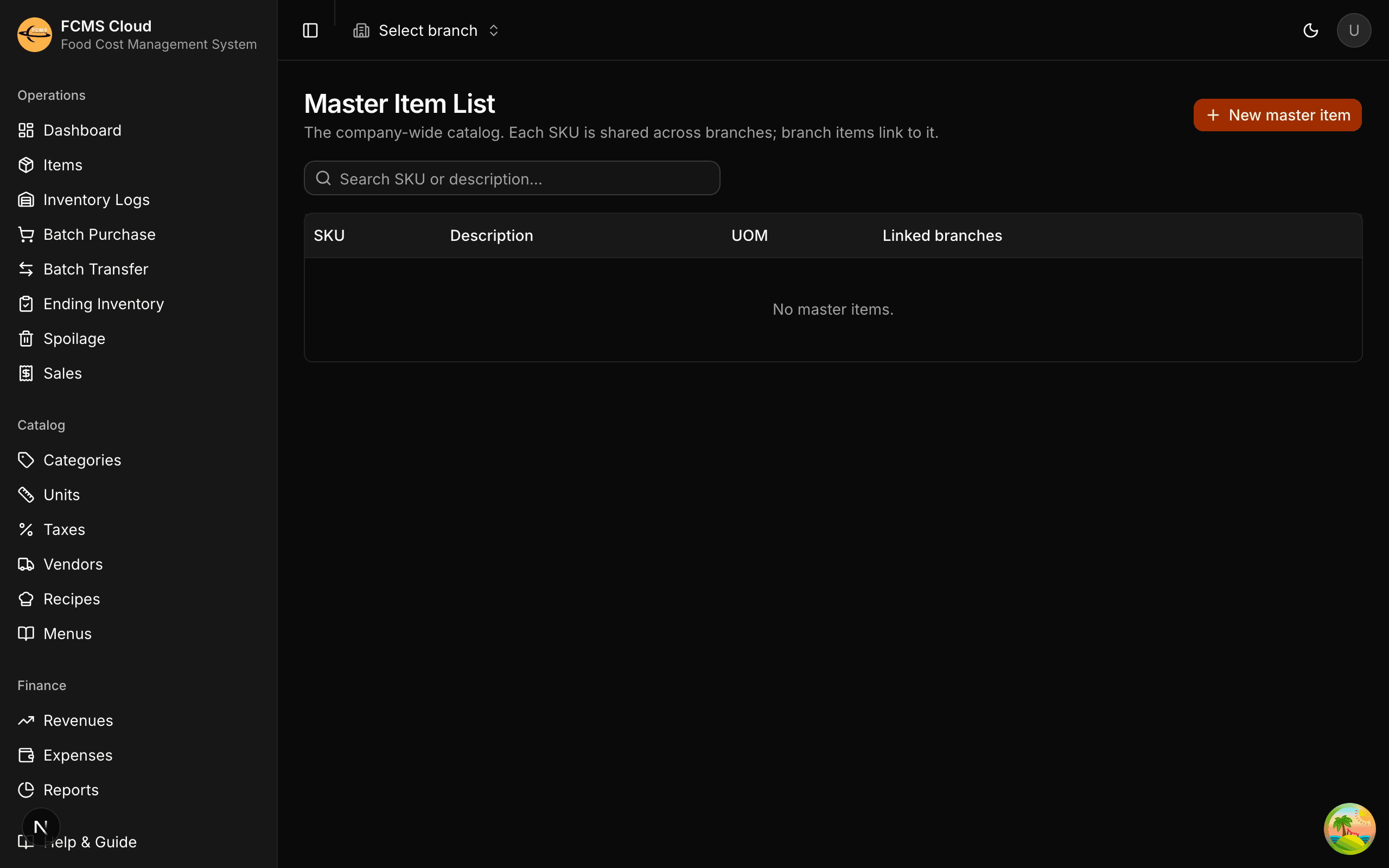
Master Items is the company-wide, centralized item list — a single catalog of every product, each identified by its SKU (name, barcode, description, packaging, and UOM). It's shared across the whole company so "500 ml Coke" means the same thing in every location, with no duplicates or typos. Master items are about consistency across branches, not stock.
When a branch registers an item, it does one of two things:
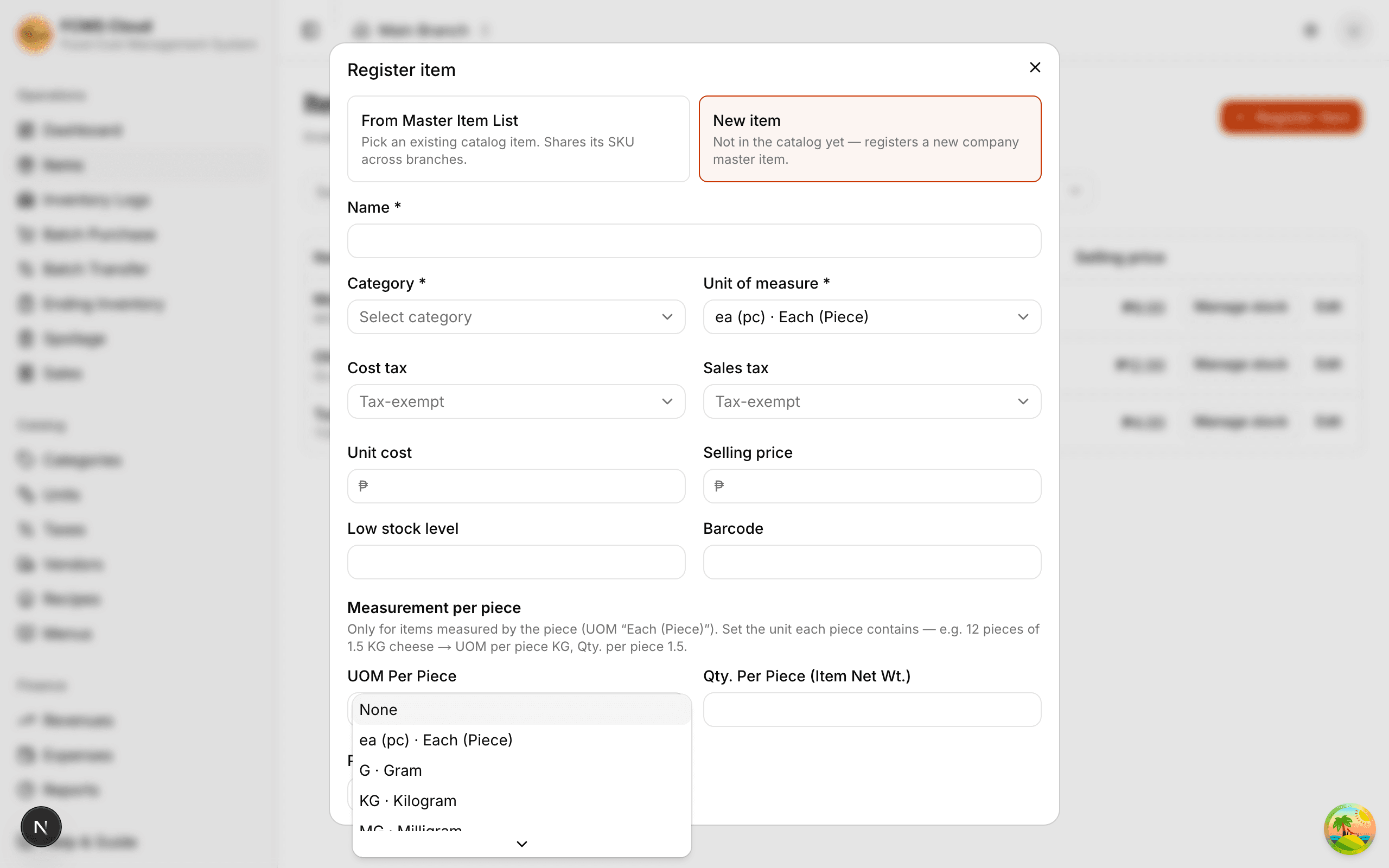
- Pick it from the master list. If the product already exists as a master item, the branch registers from it — linking its own stock to that shared SKU.
- Create a new master item. If the product isn't in the catalog yet, the branch creates the master item, and it's added to the company-wide list.
So if Branch B stocks the same product Branch A already created, Branch B doesn't make a new master item — it registers from the existing one. Both branches point at one SKU, and each keeps its own local stock against it.
The difference matters most when you edit:
| You edit… | What changes |
|---|---|
| A master item | The shared definition — name, barcode, packaging, UOM per piece — for every branch linked to it. |
| A branch inventory item | Only that branch's stock count, average cost, and selling price. Counts and costs never live on the master record. |
Heads up
Edit the right one. Fixing a typo in the company-wide name or packaging? Edit the master item so every branch benefits. Adjusting price, cost, or stock? That's the branch item — it's local to where you are.
Read more in Master items & data.
2. Register Item — Measurement per piece
Some items are counted in pieces but used in smaller amounts — you buy a bottle, but you pour it by the millilitre; you buy a sack, but you scoop it by the gram. FCMS needs to know how much is inside one piece.
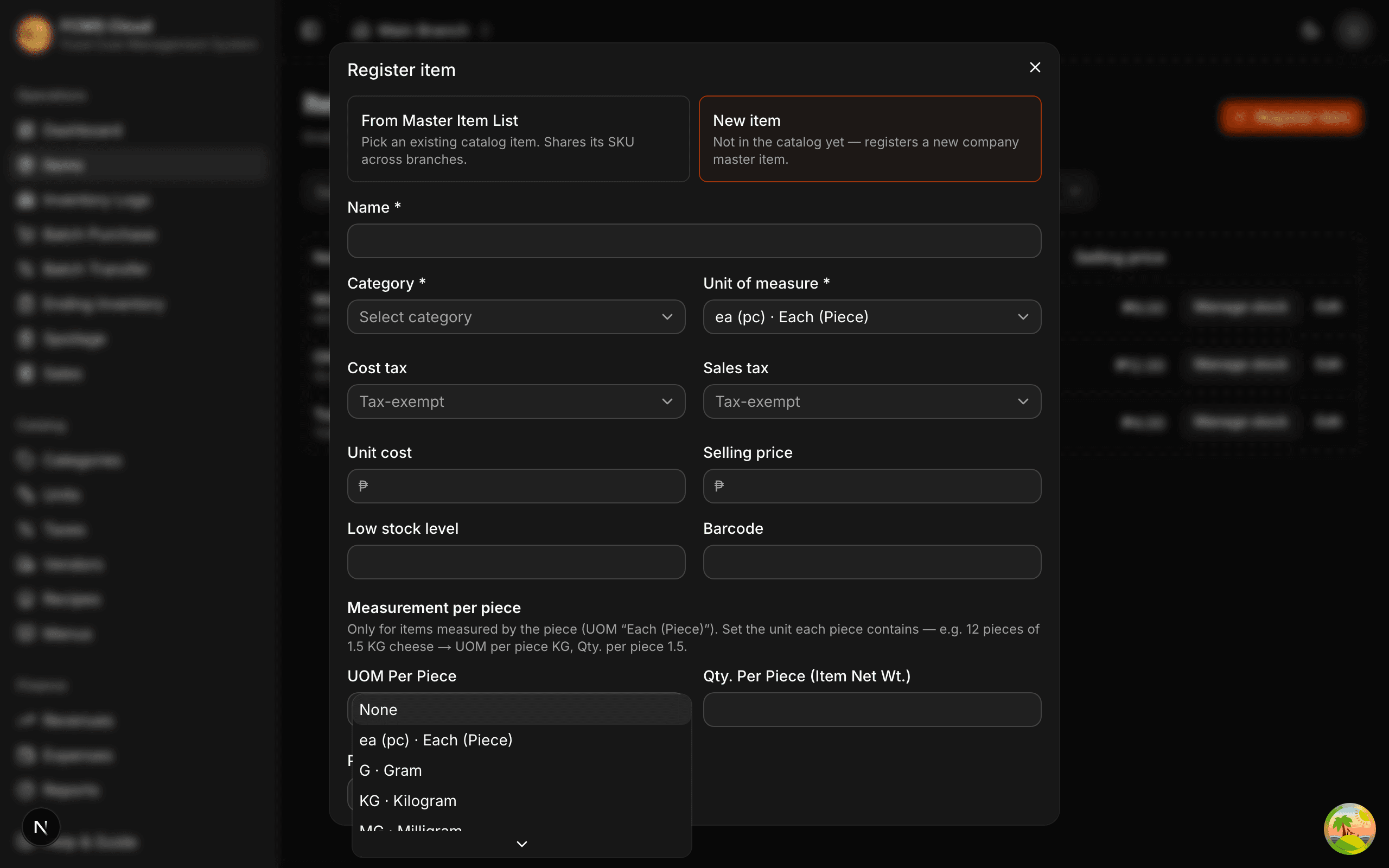
So when you register the item, tell it two things:
- Quantity per piece — how much one piece holds (e.g.
1500). - UOM per piece — the unit that amount is in (e.g.
ml).
That's it: one bottle now equals 1500 ml. You set this once at register time, and from then on every screen — recipes, spoilage, stock counts — lets you work in the unit you actually use instead of forcing you to think in pieces.
Read more in Items & categories.
3. Convert units easily — why per-piece UOM is very useful
Once you set an item's Quantity per piece and UOM per piece, FCMS can automatically convert units for you.
For example, if a bottle contains 1 Liter, you can enter:
200 ml0.5 L2 cups10 tsp
FCMS will automatically convert everything back to the item's stock unit — no manual calculations needed.
This works throughout FCMS, including:
- Recipes — enter the exact amount used (e.g. 200 ml).
- Spoilage — record losses in the unit that's easiest to measure.
- Manage Stock — add purchases, usage, and stock counts using the unit on hand.
When you tick "Measure by the item's UOM per piece", the Unit list expands to show all compatible units (ml, L, tsp, tbsp, cup…), making it easy to enter quantities however you measure them.
Tip
If you can't find the unit you want, go back to the item and set its Quantity per piece and UOM per piece first (section 2). Once that's configured, unit conversion becomes available everywhere in FCMS.
You'll see this same Quantity + Unit + "Measure by the item's UOM per piece" option again in Recipes (section 6) and Spoilage (section 7) below.
4. Import IDT (Inventory Data Template)
When you're first setting up — especially a new branch — entering items one at a time is slow. The Inventory Data Template (IDT) lets you build your whole catalog in a spreadsheet and import it at once.
Download the blank template
Get the empty FCMS Inventory Data Template. You can include the unit-of-measure columns or leave them out.
Fill it in
One row per item. Columns are matched by their header name, so the order of columns doesn't matter — just keep the headers intact and don't rename them.
Upload and review
Upload the .xlsx or .csv, then check the import summary — what was created, skipped, or flagged — before relying on it.
Tip
Rows with no purchase or transfer date land in the current month by default, and you can pick a different month at import time so your opening stock falls in the right period.
Heads up
IDT is for your initial bulk setup. Once you're up and running, don't re-import to manage stock — use the three everyday tools below. Re-importing is for adding new items in bulk, not for day-to-day counts and purchases.
Read more in Master items & data.
5. The three everyday inventory tools
After the initial import, three tools cover almost everything you'll do with stock. Reach for them — not another import — to keep inventory honest:
- Batch Purchase — stock in from a supplier. Add several items, enter quantities and unit costs, and confirm them as one delivery. → Recording stock
- Batch Transfer — move stock between branches, tracking each transfer's status from request to receipt. → Branch transfers
- Ending Inventory — the periodic physical count: count what's on the shelf, compare it to what FCMS expects, and reconcile the variance. This is the single most important habit for accurate food cost. → Recording stock
6. Recipes — costs that update, ingredients in any unit
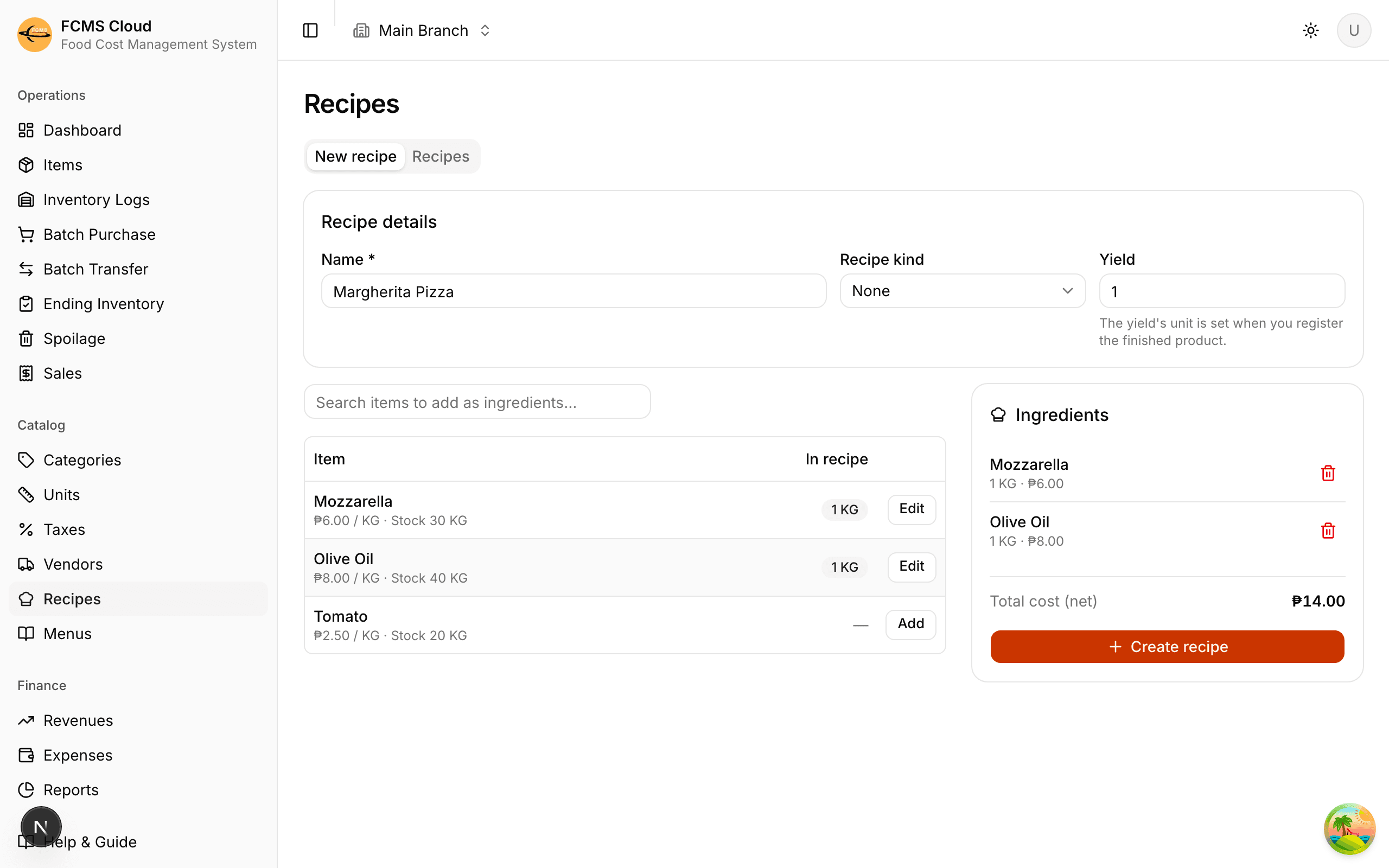
A recipe lists its ingredients (each with a quantity and unit) and a numeric yield, and FCMS adds up what it costs to make. Two things make this powerful:
- Costs update automatically. Ingredient costs come from your purchases, so a recipe's cost moves as your buying prices change — keep purchases accurate and recipe costs follow, no re-entry needed.
- Ingredients in any unit. Thanks to per-piece conversion (section 3), you can add an ingredient using a different UOM than its stock unit — tick "Measure by the item's UOM per piece" to enter 200 ml of a bottle sold by the piece, and FCMS converts it for you.
Read more in Recipes & menus.
7. Spoilage — record losses in any unit
When stock is wasted, damaged, or expired, record it as spoilage so it leaves inventory and shows up in your waste reporting. Same unit-conversion benefit applies: enter the quantity lost in whatever unit is natural for the item, and FCMS converts it and values the loss at the item's current average cost.
Read more in the Spoilage section of Recording stock.
8. Revenue grouping of categories
A revenue group is an income line — Food, Beverage, Retail — built from one or more of your item categories. FCMS sums the net POS sales of those categories to give each group its monthly revenue, so sales flow into the right line automatically.
Note
A revenue group is also the denominator for cost percentages: "food cost is 32%" means food cost measured against the revenue of the matching group. That's why grouping your categories thoughtfully is worth getting right early.
Read more in Revenues & expenses.
Now dive in: start with Create your account, or jump straight to the chapter for any concept above.