
Branch transfers
If you run more than one branch, batch transfers let you move stock from one to another while keeping both branches' inventory and costs accurate. A transfer is a back-and-forth handshake: one branch requests or sends, the other reviews and receives. The receiving branch picks up the stock at the sending branch's cost, so your food-cost reports stay honest across locations.
Access
Transfers need the Batch Transfer permission. Both branches involved must be under the same company, and you act on a transfer from whichever branch you're currently signed in to.
The two kinds of transfer
When you start a transfer you first choose its type:
- Branch to Branch Batch Transfer — the full, stateful flow described in this chapter. Stock leaves one of your branches and arrives at another, with a review-and-receive handshake so nothing moves until both sides agree.
- Log Batch Transfer (coming soon) — a quick way to log items as transferred out or in without a destination branch (for example, to another company). This is on the roadmap and not yet available.
How a transfer flows
Every transfer moves through a series of statuses. Knowing them tells you whose turn it is to act:
| Status | What it means | Whose move |
|---|---|---|
| Draft | Started but not submitted yet | The branch building it |
| Requested | Submitted, waiting for the other branch to review | The other branch |
| Accepted | Both sides agreed on items and quantities | The sending branch |
| Transferring | Stock has been dispatched and is in transit | The receiving branch |
| Received | Stock arrived — logged out of the source and into the destination | Done |
A transfer can also be cancelled by the branch that raised it, or rejected by the branch reviewing it, with an optional reason in either case.
Note
Either branch can start a transfer — you can request stock in from another branch, or send stock out to one. Whichever way it starts, the source branch (the one losing stock) is the one that physically dispatches it once the request is accepted.
Creating a transfer
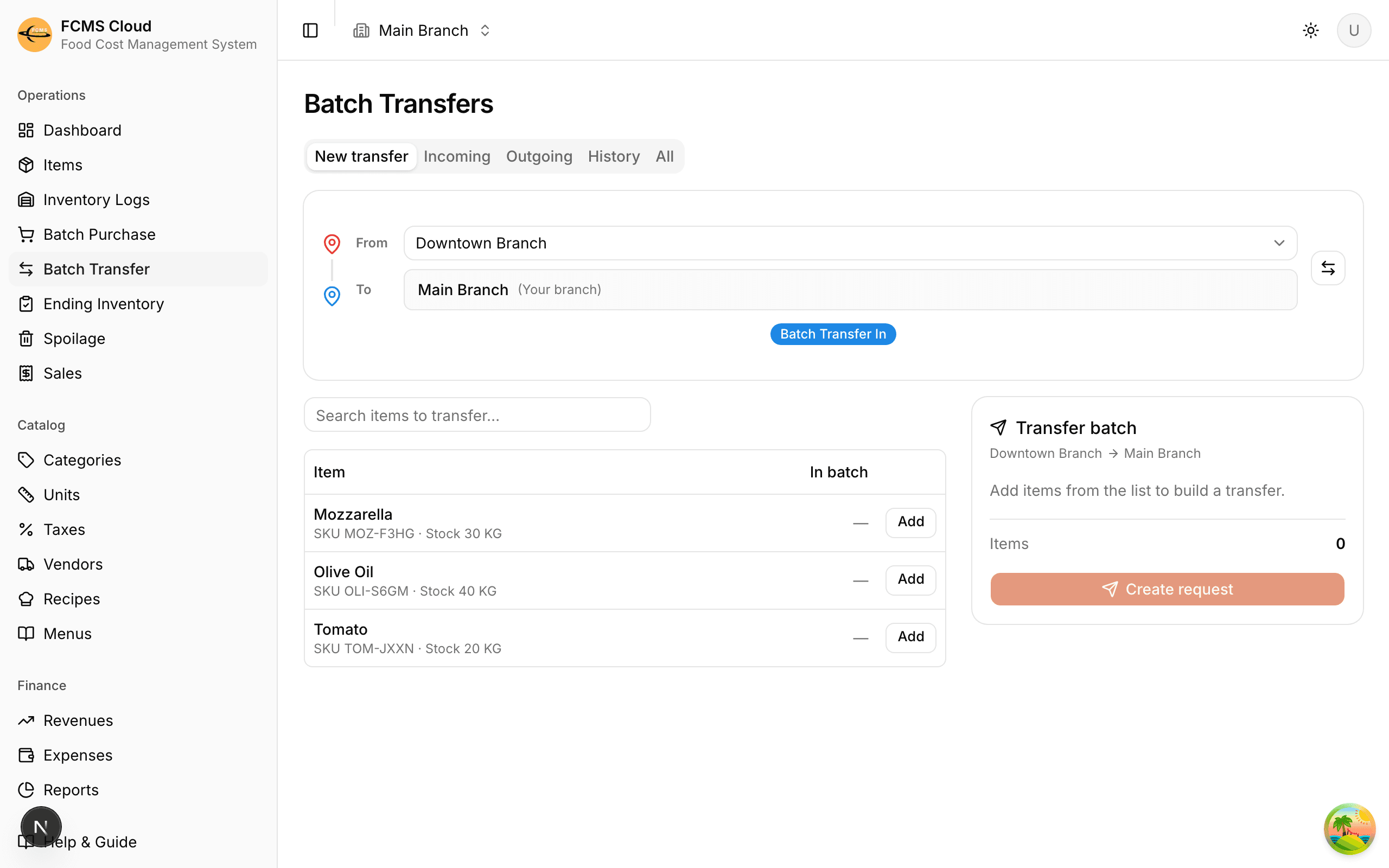
Open Batch Transfer
Web: Batch Transfer in the sidebar. Mobile: the Batch Transfer button on the home screen.
Choose the transfer type
Pick Branch to Branch Batch Transfer.
Set origin and destination
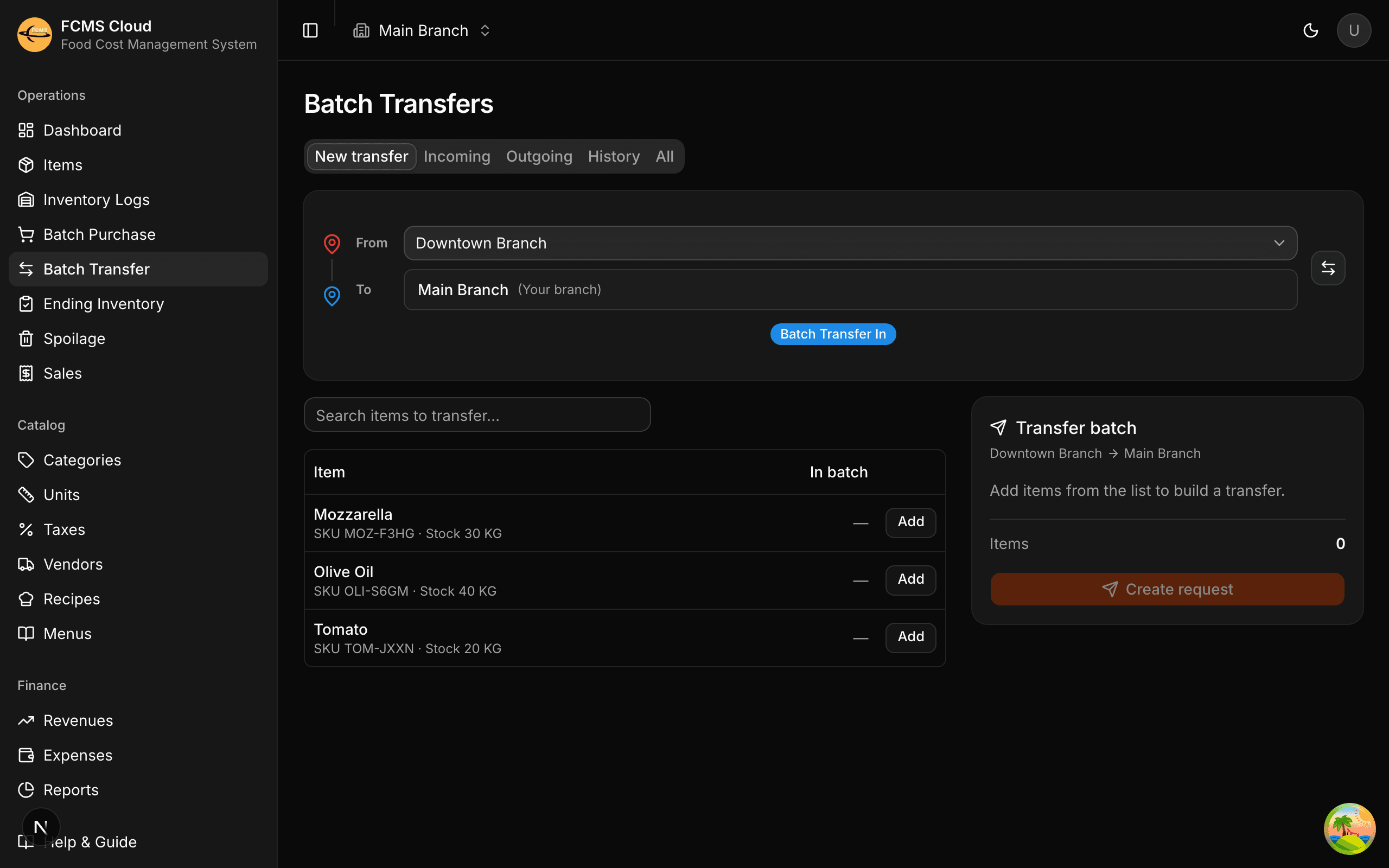
Choose which branch the stock leaves (Origin) and which it goes to (Destination). One of these is your current branch.
Add items and quantities
Search for each item and enter the quantity to move. Add a short remark if it helps the other branch understand the request.
Save or submit
Save it as a draft to finish later, or submit it to send the request to the other branch. Submitting moves it to Requested.
Reviewing and accepting
When a request lands on the other branch, it appears in their transfer list with an unread marker. They open it and either:
- Accept — optionally adjusting the quantity per item if they can't fulfil the full amount. Accepting moves the transfer to Accepted.
- Reject — declining the request, with an optional reason. The stock never moves.
Dispatching and receiving
Source dispatches (Transfer out)
Once a request is Accepted, the source branch confirms the dispatch. This locks in the quantity actually sent and snapshots each item's cost so the value can travel with the goods, then moves the transfer to Transferring. No stock has moved yet — nothing is logged on either branch at this point.
Destination receives (Transfer in)
When the goods arrive, the destination branch opens the transfer and confirms what was received (you can record a received quantity if it differs from what was sent), moving the transfer to Received. This is the only moment stock actually moves. Confirming receipt writes both logs at once: a Stock Transfer Out on the source branch and a Stock Transfer In on the destination branch, both at the source's snapshotted cost.
Tip
Each item carries up to four numbers as it moves: requested, accepted, the adjusted amount actually dispatched, and received. Comparing them later tells you exactly where any shortfall happened.
Staying on top of transfers
- Unread indicators flag transfers that need your attention — a new request to review, or stock that's now ready to receive. The Batch Transfer entry shows a badge when something's waiting.
- Open any transfer to see its full timeline, the per-item quantities at each stage, and the Stock Transfer In logs that recorded the arriving stock.
- Cancelling vs rejecting: the branch that raised a request can cancel it before it's dispatched; the reviewing branch can reject it. Both keep a record with the reason you give.
Heads up
Stock is logged only when items are marked received — never at request, accept, or dispatch. That single step writes the Stock Transfer Out on the source branch and the Stock Transfer In on the destination branch together, so both branches' stock levels stay in lockstep. If a transfer is stuck, check its status to see which branch needs to act next.
Next: Recipes & menus.