
Sales & POS
FCMS includes a point-of-sale counter for ringing up sales, plus tools for pre-orders and reviewing past invoices. Every completed sale automatically removes the items sold from your stock, so inventory and sales always stay in step.
Access
The sales tools are gated by the Counter, Sales Orders, and Sales Log permissions. A cashier might see only the counter, while a manager also sees orders and the full sales log.
Ringing up a sale at the counter
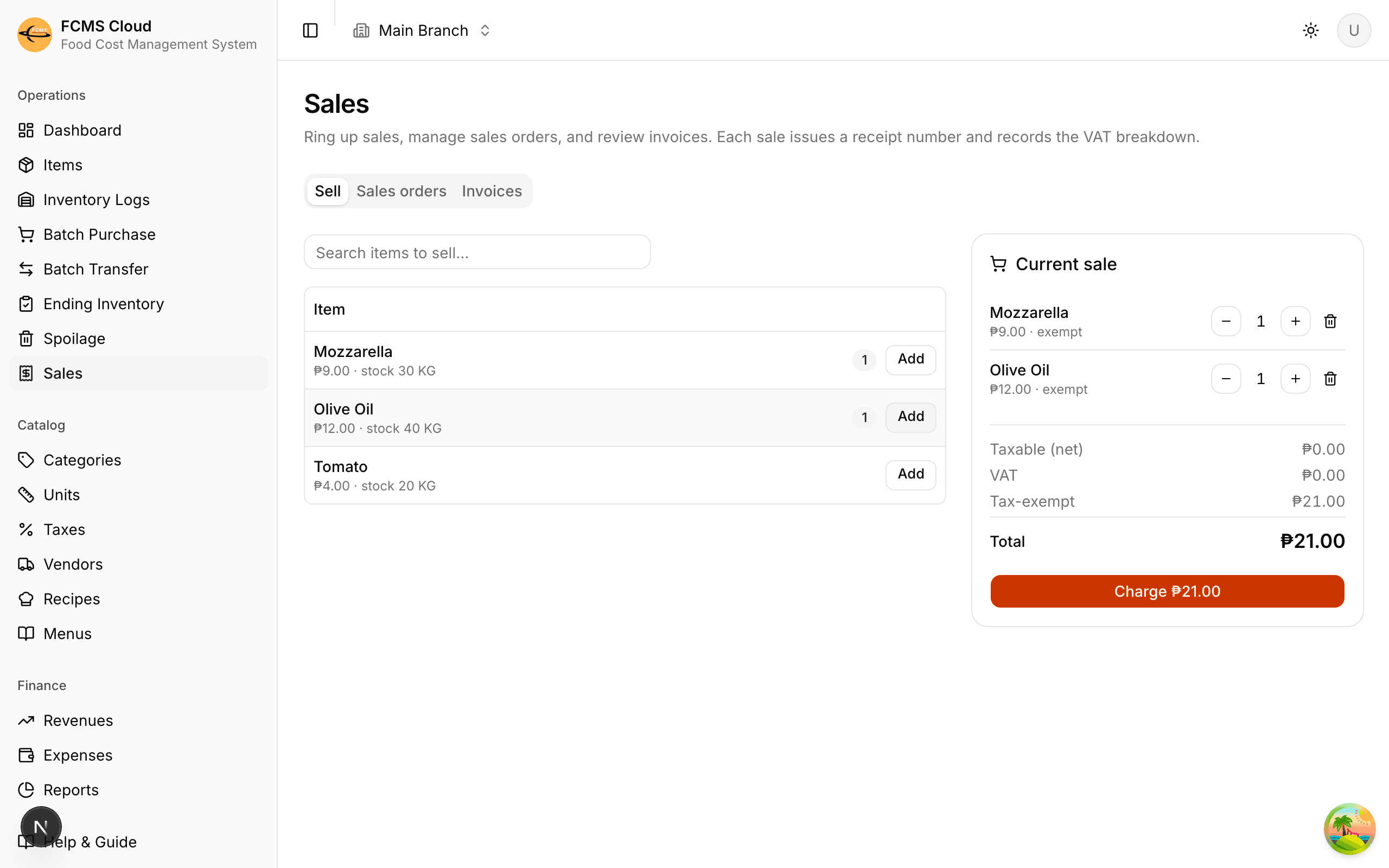
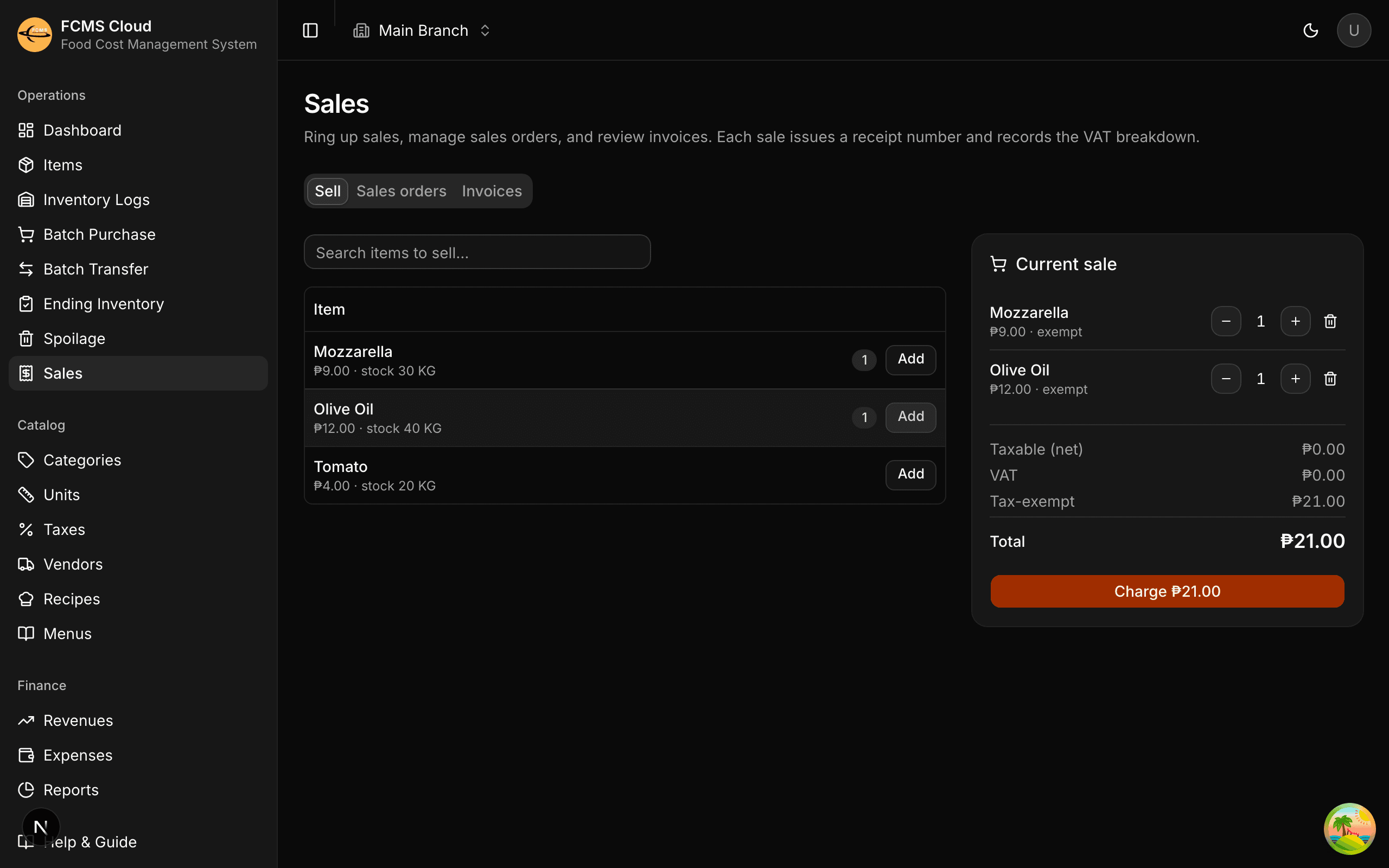
The Sales Counter is your till. You pick items, take payment, and FCMS records the sale and adjusts stock.
Open the counter
Web: Sales in the sidebar, Counter tab. Mobile: the Sales Counter button on the home screen.
Add items
Search and tap items, or pick them from a selling menu. Set the quantity for each line; the running subtotal, tax, and total update as you go.
Take payment
Choose Confirm sale to open the payment window. Pick Cash or Card, enter the amount tendered, and FCMS shows the change due.
Complete the sale
Confirming records the sale, deducts the items from stock, and produces an invoice (receipt). The counter clears, ready for the next customer.
Split payments
If a customer pays part cash and part card, use a split payment: enter an amount against each method. FCMS checks that the amounts add up to the total before letting you confirm, and shows any change on the cash portion.
Tip
Tax is handled per item. Items you marked as tax-exempt contribute to an exempt bucket and aren't taxed, while the rest are taxed at their rate — so the receipt's tax line is always correct without any manual maths.
On mobile
On mobile you can connect a thermal receipt printer and print the receipt straight after a sale. Set this up under Printers in settings — see Settings & account.
Sales orders (pre-orders)
A sales order is an order taken before it's paid — for a table, a phone order, or a pickup. You build the order now and fulfil it into a paid sale later.
Create an order
Web: Sales → Sales orders → Create order. Mobile: the Sales Orders button. Add the items the customer wants.
Track its progress
Each order shows a Fulfilled / Total count so you can see at a glance whether it's Incomplete or Completed.
Fulfil into a sale
When the customer pays, Fulfil order carries the items to the counter and takes payment — turning the order into an invoice and deducting stock.
Invoices (the sales log)
Every completed sale becomes an invoice in your sales log. Open the Invoices tab (web) or the Sales Log (mobile) to:
- Review past sales with their items, totals, payment method, and cashier.
- Reprint a receipt.
- Look back over a chosen period.
Note
Sales are the one place stock leaves automatically — you never record usage for a sold item by hand. This is why the counter is the reliable source for what's actually been sold, and it feeds straight into your reports.
Next: Revenues & expenses.