
Reports
Reports are where all your careful record-keeping pays off. FCMS analyses your purchases, usage, counts, and sales to show food cost, margins, and profit — by item, by category, and against revenue.
Access
Reports need the Reports permission. They read across your whole branch, so they're typically available to managers and owners.
Choosing what you see
Open Reports (web sidebar) or the Reports tab on mobile, then pick a month. Every report is calculated for the month you choose, so you can compare like with like from one period to the next.
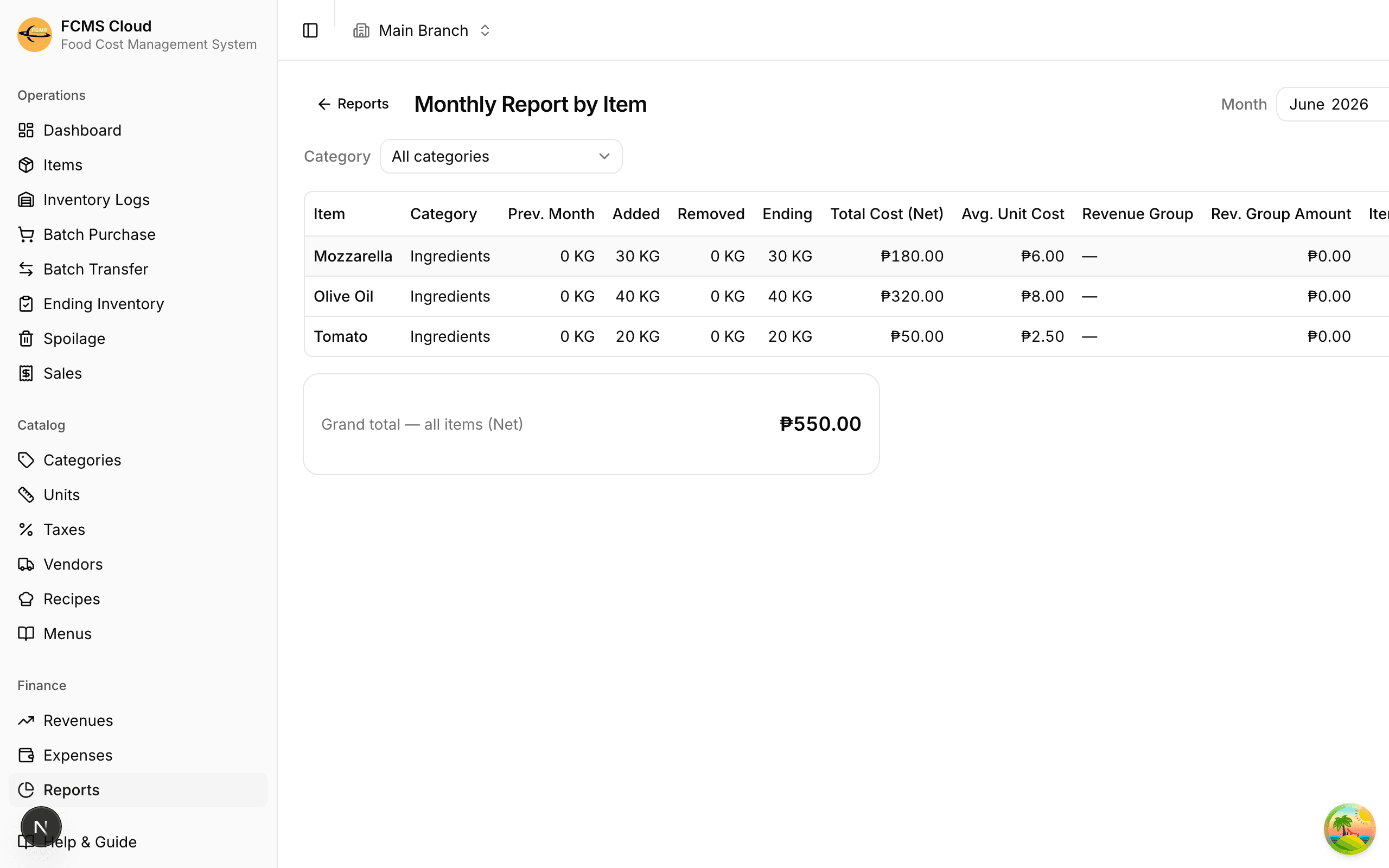
Monthly report by item
A per-item breakdown of how stock moved and what it cost over the month:
- Stock movement — what was added (purchased/produced) and removed (used, sold, spoiled, transferred).
- Cost and average unit cost — the weighted-average cost FCMS keeps for the item.
- Cost % — that item's cost measured against revenue.
Use this to spot which specific items are driving your food cost.
Monthly report by category
The same picture rolled up by category, lined up against the revenue group each category feeds:
| Column | What it shows |
|---|---|
| Revenue group & amount | The income line this category maps to, and its revenue |
| Purchases (Net) | What you bought into the category this month |
| Purchase % | Purchases as a share of the group's revenue |
| Removed (Net) | Cost of stock used, sold, or lost |
| Cost % | The headline food-cost percentage for the category |
| Added / Ending stock (Net) | What came in and what's left at month end |
Totals across all categories sit at the bottom, including the previous month's ending stock for comparison.
Note
Cost % is the number most operators watch. It compares the cost of stock that left (was sold or used) against the revenue it earned. A category that maps to the right revenue group gives a meaningful percentage; one with no revenue group can't.
Food-cost analysis
A monthly summary across your revenue and expense groups — group revenue totals, the cost against each, and your expense groups — pulling revenues and expenses together into the overall food-cost and profit view.
On mobile
The mobile app includes additional analyses — such as profit & loss, food and beverage variance, and menu mix — that are rolling out to the web app over time. Where a report isn't on the web yet, reach for the mobile app.
Exporting
Most reports can be exported to a spreadsheet for sharing, archiving, or deeper analysis in your accounting tools. Look for the export action on the report screen.
Tip
Reports are only as good as the data behind them. Keeping purchases, spoilage, and your monthly ending inventory up to date — and mapping categories to revenue groups — is what makes these numbers trustworthy.
Next: Master items & data.