
Your team & roles
FCMS is built for teams. You invite people to your company, then give each of them a role that decides exactly what they can see and do. A cashier might only reach the sales counter; a manager might run everything except billing.
Access
Managing members and roles requires the User Management permission. Owners always have it; you can grant it to trusted managers.
How access works
Two ideas work together:
- A role is a named set of permissions, such as "Manager" or "Cashier".
- Each permission unlocks one area (Items, Sales, Reports…) and the actions inside it (view, create, edit, delete).
You assign a role to a person once; change the role and their access changes everywhere.
Built-in roles
Most businesses start with these and adjust later:
| Role | Typical use |
|---|---|
| Admin | Full access to everything, including team and settings. |
| Manager | Day-to-day operations; usually no team management or billing. |
| Encoder | Data entry — purchases, stock, items — without selling. |
| Chef | Recipes and production (yield); read-only on stock. |
Invite a team member
Open team management
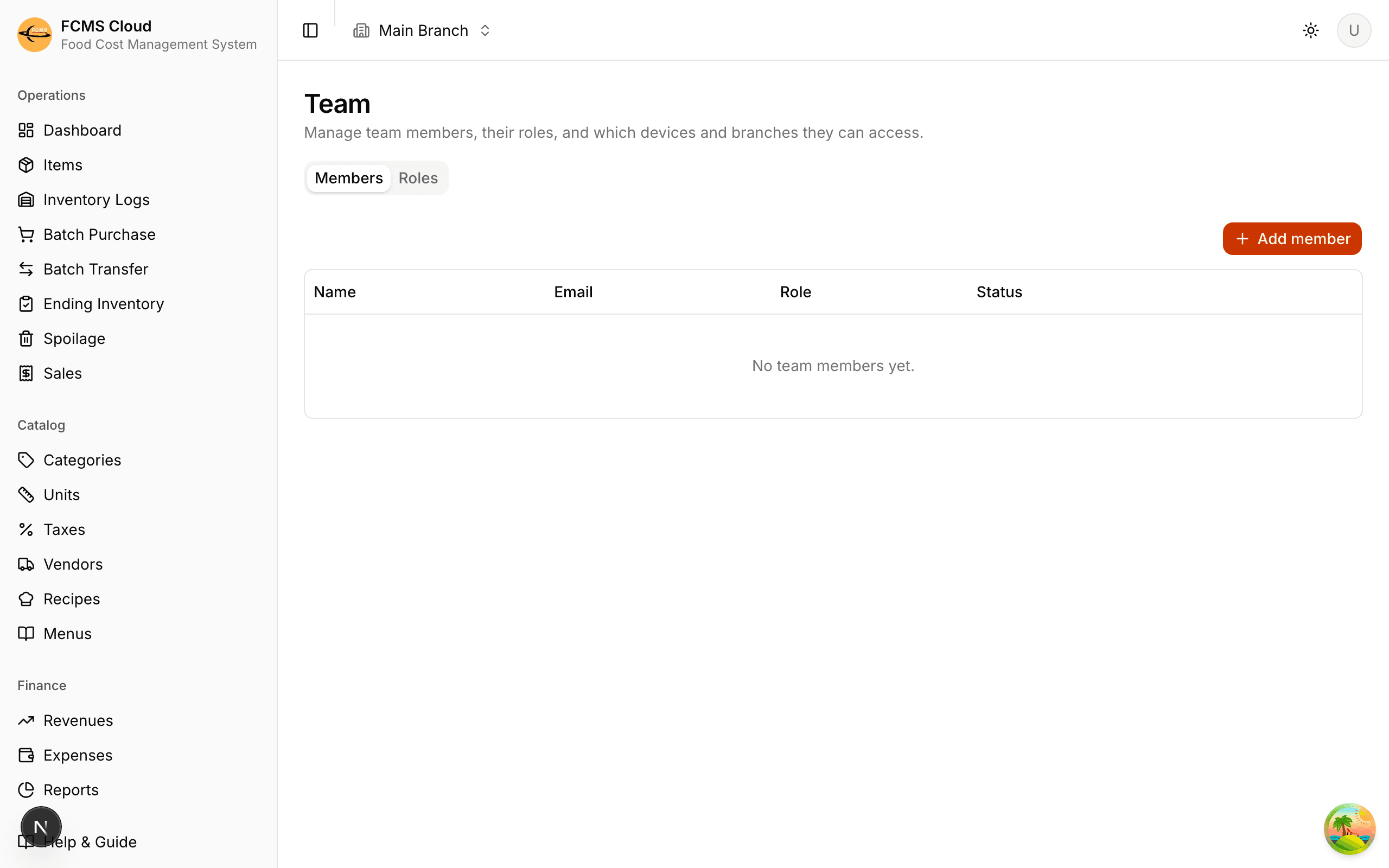
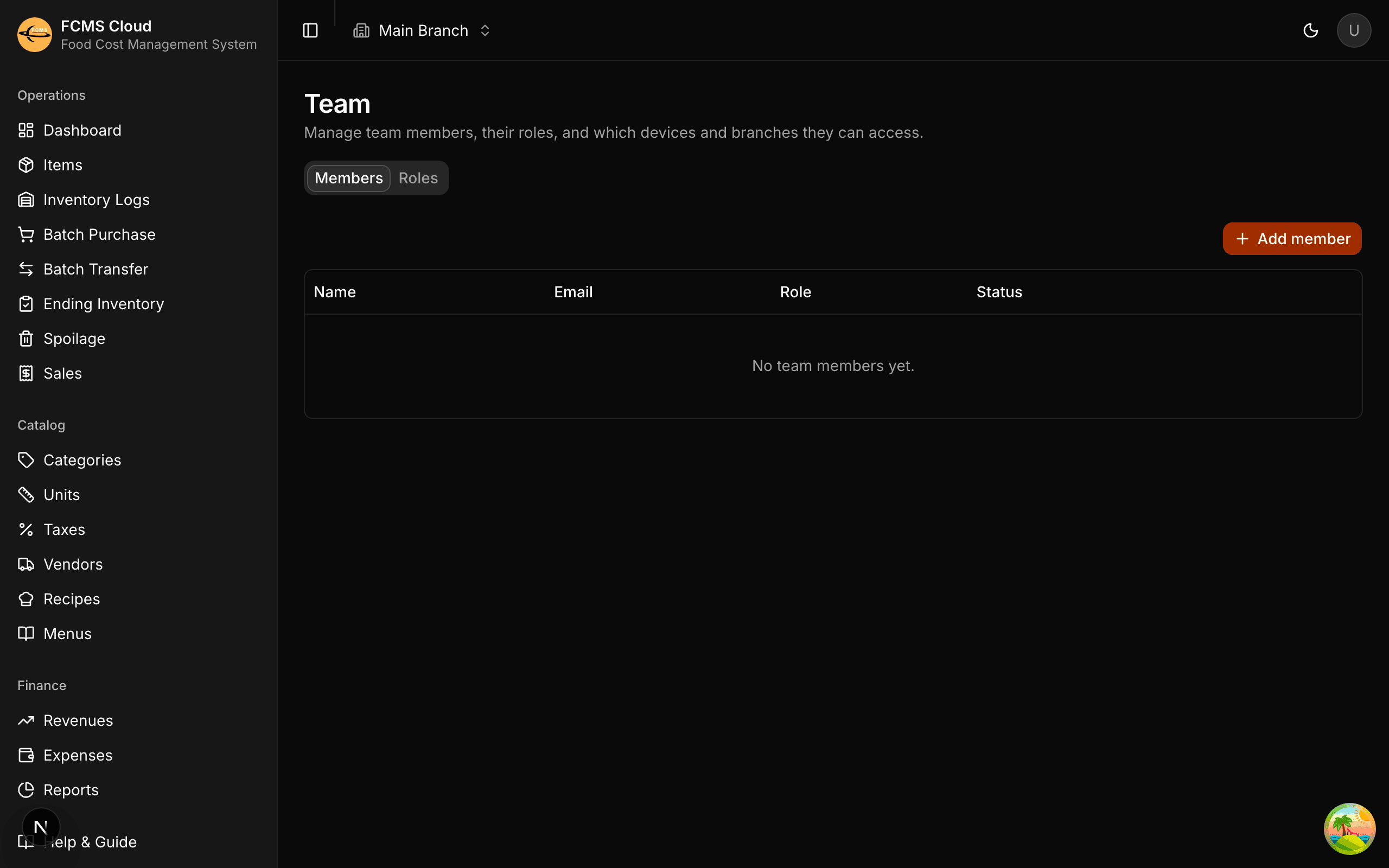
Go to Team (web: the Manage section of the sidebar; mobile: Settings → Roles / Team).
Add a member
Enter their email and, optionally, their name. The email must be unique within your company.
Assign a role
Pick the role that matches their job. You can change it any time.
Save
The person can now sign in using the Team member sign-in with that email and their password.
On mobile
On mobile, after adding members you may assign them to the device so they can sign in on that phone or tablet. A device can have several members assigned.
Create or edit a role
If the built-in roles don't fit, make your own.
Open the Roles tab
On the Team page, switch from Members to Roles.
Name the role
For example, "Stockroom" or "Front desk".
Choose permissions
Tick the areas and actions this role should have. You can allow a whole area (e.g. all of Items) or just specific actions (e.g. view only).
Save and assign
Assign the new role to members from the Members tab.
Tip
Give people the least access they need to do their job. It keeps your data tidy and reduces mistakes — you can always add more later.
Managing members over time
- Change a role — update it on the Members tab; access changes immediately.
- Deactivate — temporarily block sign-in without deleting the person.
- Remove — delete a member who has left. This can't be undone, so deactivate if you're unsure.
Heads up
You can't delete a role while it's still assigned to someone. Move those members to another role first.
Next: Items & categories.