
Items & categories
Your catalog is the foundation of FCMS. Everything else — stock, recipes, sales, reports — refers back to the items you set up here. This chapter shows how to create items and organise them, plus the supporting lists they rely on: categories, units, taxes, and vendors.
Access
Creating and editing items needs the Items permission. The supporting lists have their own permissions (Categories, Taxes, Vendors, Settings for units).
What is an item?
An item is anything you track: a raw ingredient (flour, soda), a product you resell (a bottled drink), or a finished product you make and sell (a burger). Each item carries a few key details:
| Detail | Why it matters |
|---|---|
| Name | What you and your team call it. |
| SKU / barcode | For quick search and scanning (optional, auto-filled if blank). |
| Category | Groups the item for reports. |
| Unit of Measure (UOM) | How it's counted — kg, litre, piece, box. |
| Unit cost | What it costs you, used in food-cost calculations. |
| Selling price | What you charge (for items you sell). |
| Tax | The tax rate applied when buying or selling. |
| Low-stock level | When to warn you it's running out. |
Create an item
Open Items
Web: Items in the sidebar. Mobile: the Inventory / Items button on the home screen.
Start a new item
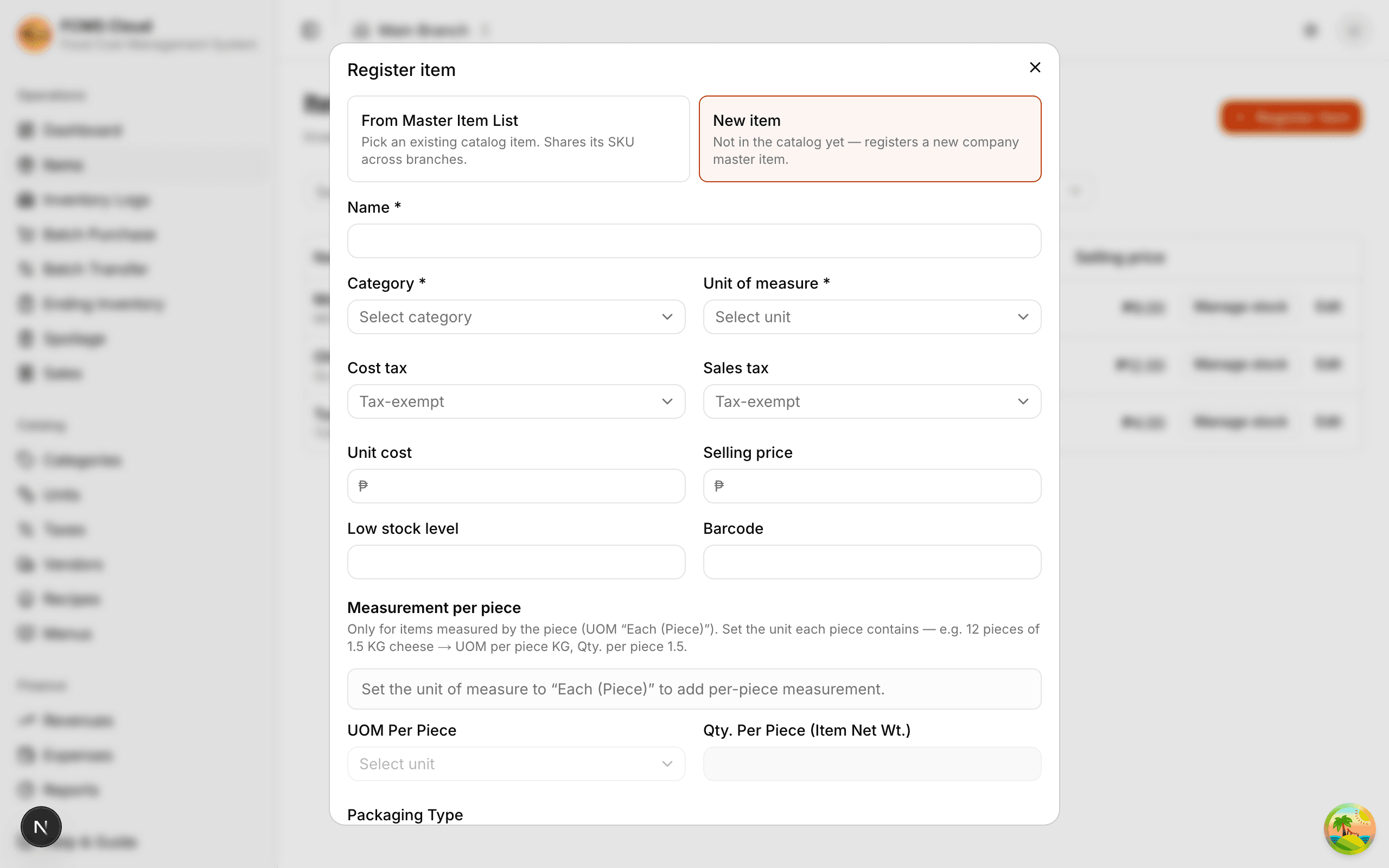
Tap or click New item.
Fill in the details
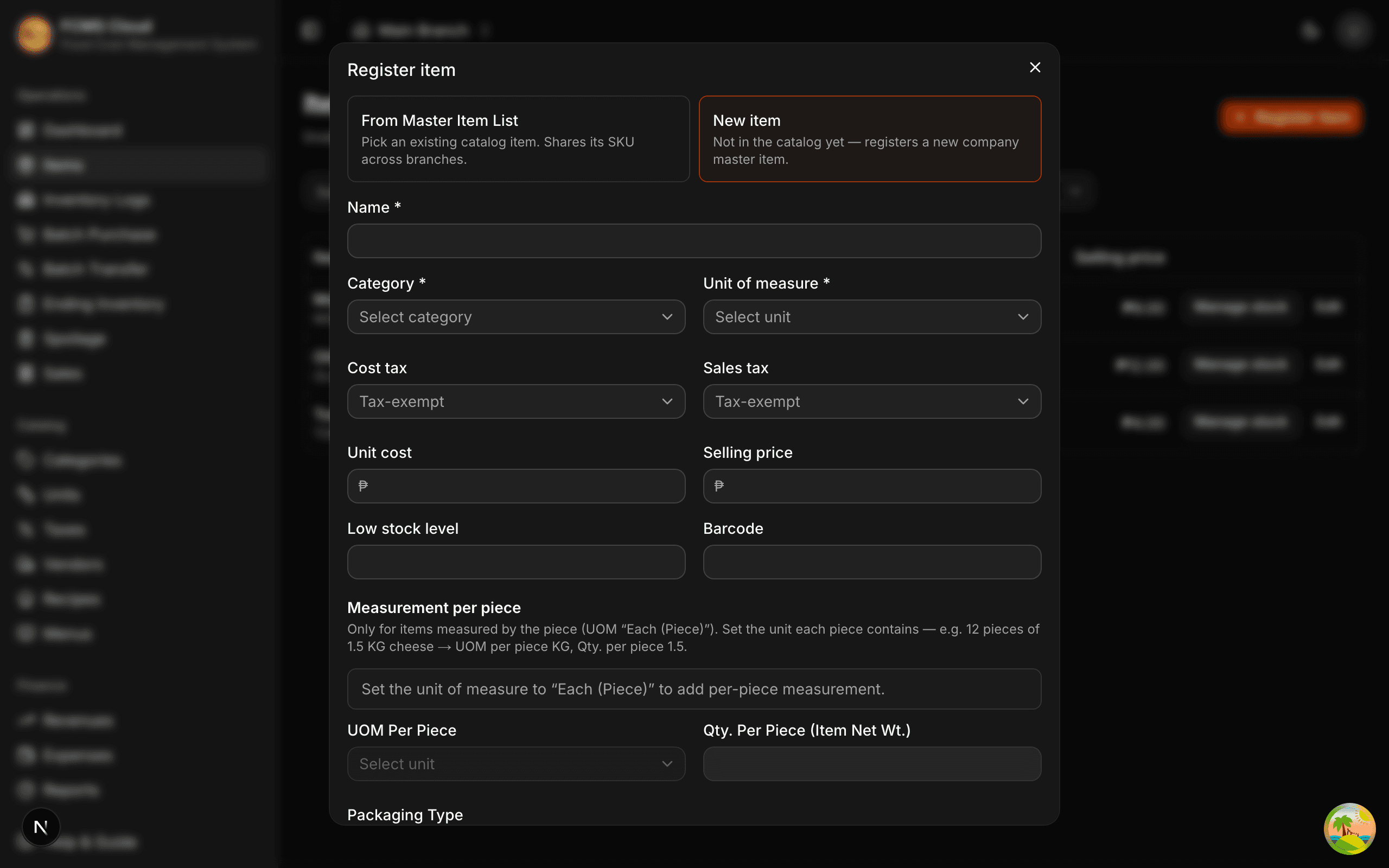
Name is required. Add a category, choose a unit of measure, and enter cost, price, and tax as they apply. Mark it as a finished product if it's something you produce from a recipe.
Set a starting stock (optional)
Enter how much you currently have on hand. You can also leave it at zero and add stock later via a purchase.
Save
The item appears in your list, ready to buy, count, and sell.
On mobile
On mobile you can scan a barcode while creating or searching for an item — tap the scan icon next to the search box.
Find and manage items
Your items list is searchable and filterable.
- Search by name or SKU.
- Filter by category, or show only finished products.
- Open an item to see its full profile, current stock, and its complete history of stock changes.
- Low-stock badge appears when an item falls to or below its low-stock level.
Tip
Open an item's detail page to add stock, remove stock, or correct a past entry — see Recording stock.
The supporting lists
Items lean on four small lists. Set these up once and reuse them everywhere.
Categories
Categories group items (for example "Beverages", "Dry goods", "Produce") so reports can show cost and sales by group. Create, rename, and delete them from the Categories screen — each just needs a name.
Units of Measure (UOM)
Units describe how an item is counted: weight (kg, g), volume (L, ml), or count (piece, box). FCMS comes with common units ready to go, and you can add your own.
On the web app
Manage units under Units in the Catalog section. Adding units needs the Settings permission.
Taxes
Define the tax rates you use — for example a 12% VAT — with a name and a percentage. Assign a tax to an item so it's applied automatically when you buy or sell. Manage them from the Taxes screen.
Vendors
Vendors are your suppliers. Record a vendor's name and contact details, then set one as an item's preferred supplier. This keeps purchasing organised and lets you track cost by vendor. Manage them from the Vendors screen.
Tip
Set up categories and units before adding lots of items — it's much faster than going back to tag everything afterwards.
Next: Recording stock.