
Create your account
Everything in FCMS belongs to a company. The first person to sign up creates that company and becomes its owner. Everyone else joins as a team member that the owner (or a manager) invites later.
This chapter covers the three things every new user does once: creating the company, verifying your email, and signing in.
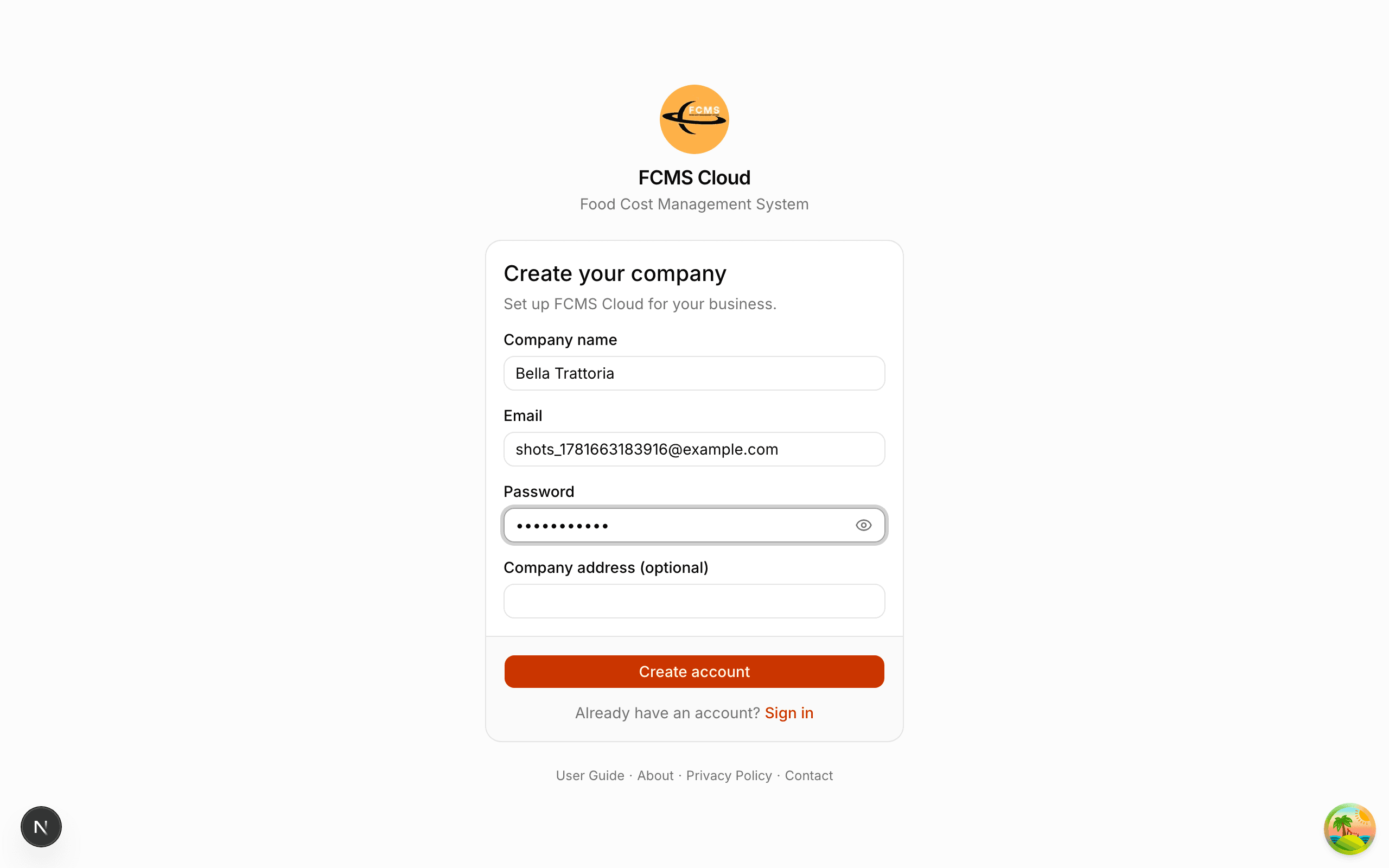
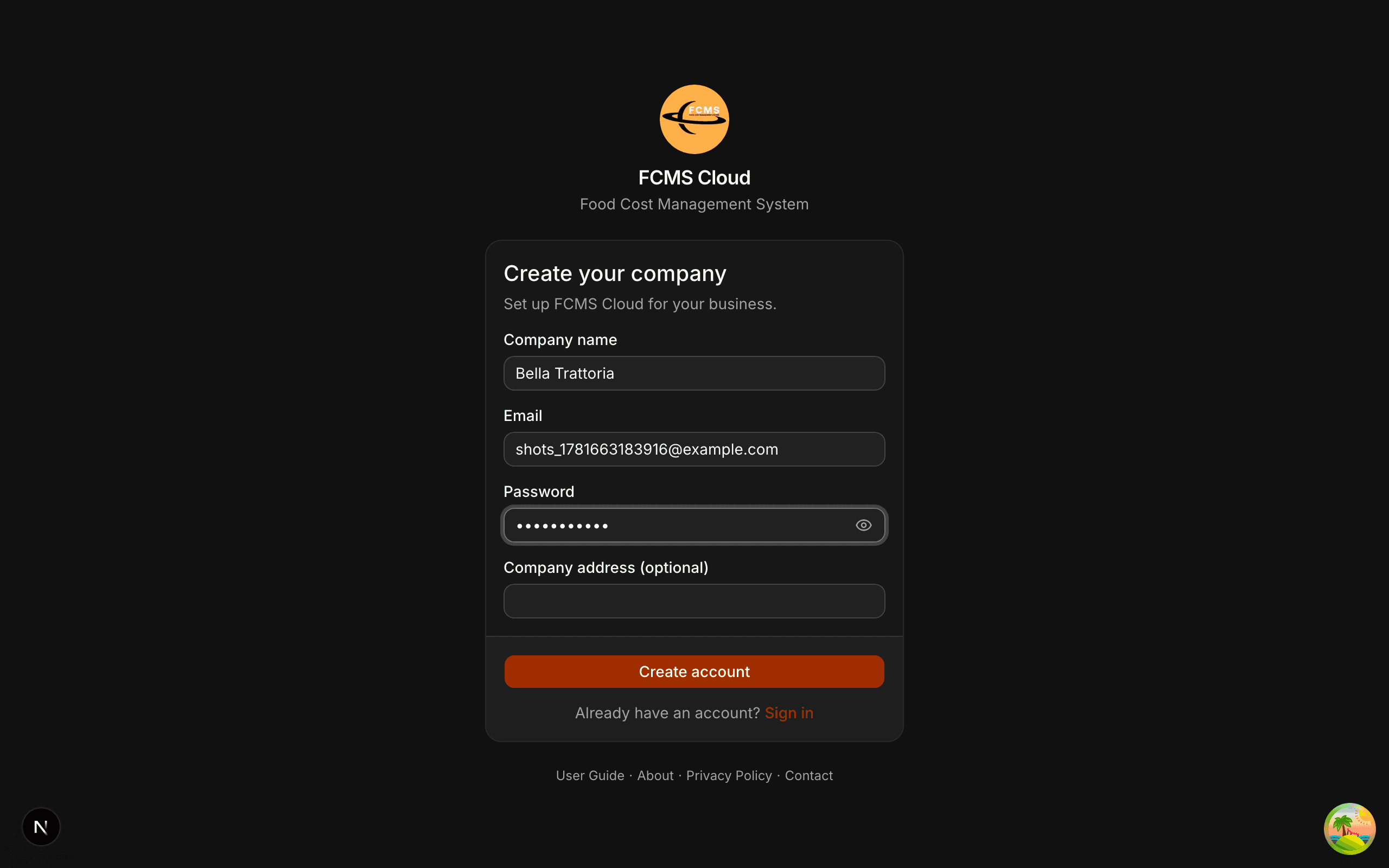
Sign up and create your company
On the web app
Open the app and choose Create company on the sign-in screen, or go straight to the sign-up page.
On mobile
On the welcome screen, tap Sign up. You'll enter your company details first, then your owner details.
Enter your company details
Company name is required. A company email and address are recommended — the email is where verification codes and notifications are sent.
Enter your details and a password
Use an email you can access right now. Your password must be at least 8 characters.
Submit
FCMS creates your company and emails you a one-time verification code (OTP).
Verify your email (OTP)
For security, FCMS confirms it's really you before your account becomes active.
Open the email from FCMS
It contains a short numeric code. Codes expire after a few minutes.
Enter the code on the verification screen
Type the code and confirm.
Didn't get it?
Check spam, then use Resend code once its countdown ends. Make sure the email address shown is correct.
Note
Resend is available after a short countdown (30 seconds to start), and the wait grows if you resend several times in a row — so codes can't be requested over and over.
Heads up
The code is single-use and time-limited. If it expires, request a new one rather than re-entering the old code.
Once verified, you continue to setting up your first branch — covered in Set up your branch.
Signing in later
When you return, sign in with the email and password you registered.
- Owners sign in on the main sign-in screen.
- Team members use the Team member sign-in option with the email their owner invited.
Tip
If you're ever asked for an OTP at sign-in, it's the same idea: check your email for the code and enter it.
On the web app
Your session is remembered securely in the browser. Use Sign out from the user menu (top-right) when you're on a shared computer.
On mobile
After you sign in on a device, FCMS registers that device to your account so your data stays private to it. You may be asked to pick or confirm a branch next.
Owner vs. team member — what's the difference?
Access
The owner account can do everything, including managing the team and company settings. Team members can do only what their assigned role allows — see Your team & roles.
If a teammate can't find a feature this guide describes, it's almost always because their role doesn't include it. That's by design, and an owner or manager can adjust it.
Next: Set up your branch.